Step 1: Download a cursor theme of your choice.
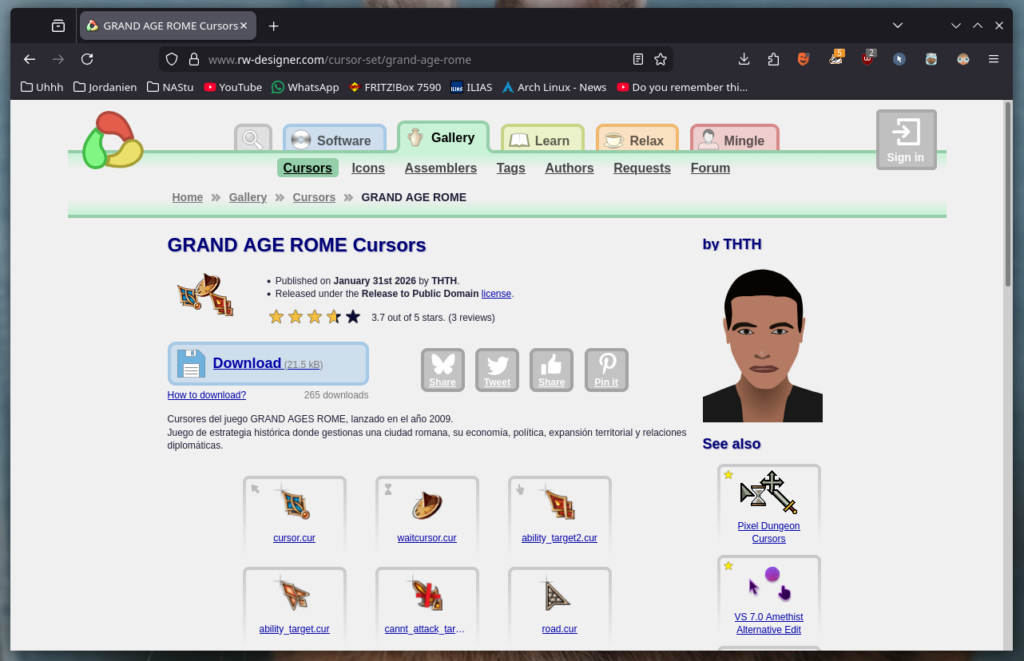
https://rw-designer.com/ has a massive catalogue of user-crated cursor sets.
Yippie! Unzip the folder using whatever software you prefer.
😀
Step 2: Convert the cursor files into a KDE-compatible format.
cd ~/Downloads/downloaded_cursor/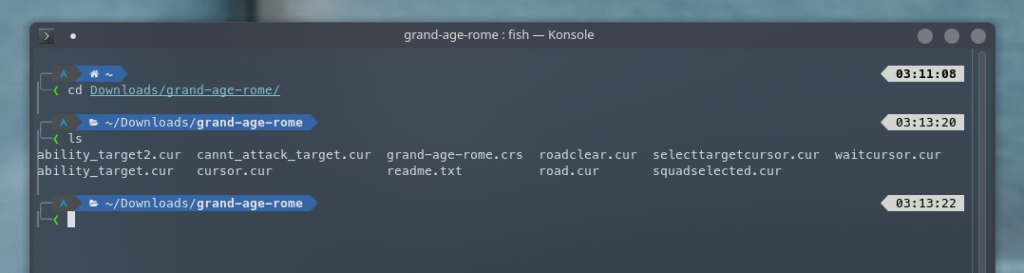
As we can see, the downloaded cursor files includes .cur files with cool names. Some themes also include .ani files for animated cursors. We can’t use those file formats so we will convert the files using win2xcur (Windows to xorg-cursor).
First, let’s install pipx if you don’t have it installed already. It’s the easiest way to automatically manage venvs and you don’t have to deal with your distribution’s laughable default handling of pip and python-… installations.
https://pipx.pypa.io/stable/installation
pipx install win2xcur
pipx ensurepath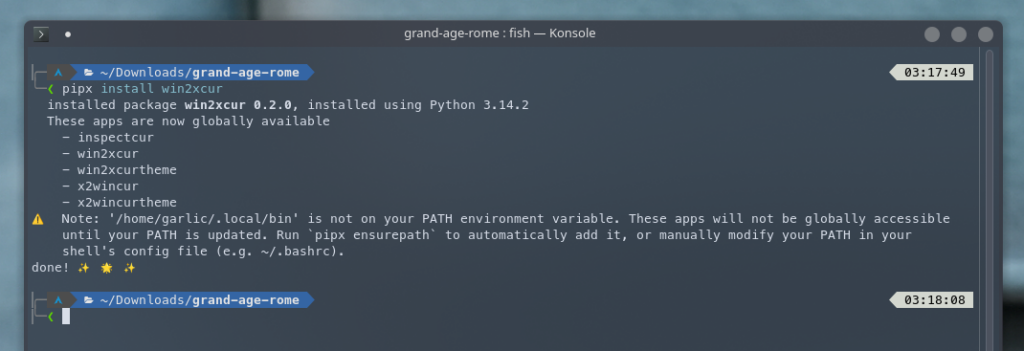
Looks like it worked. Re-open your terminal.
exitUse win2xcur to convert all files and put them into a single folder.
cd ~/Downloads/
mkdir output_folder_name
win2xcur grand-age-rome/*.{ani,cur} -o output_folder_name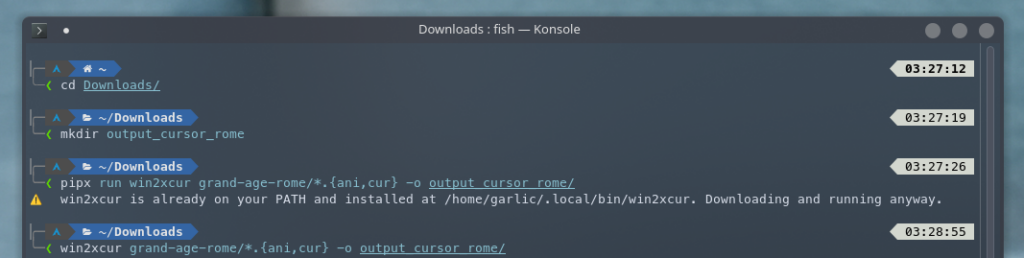
In case the win2xcur command doesn’t work, add “pipx run” in front of it.
Step 3: Copy the theme files to the correct location.
Create a directory for your new theme:
mkdir -p ~/.icons/my_theme_name/cursorsThen create the theme index file:
nano ~/.icons/my_theme_name/index.themePaste the following using Ctrl + Shift + C:
[Icon Theme]
Name=MyCursorTheme
Comment=Converted Windows cursor theme
Inherits=breeze_cursors
Save and close your text editor using Ctrl + O and Ctrl + X.
Now copy all your files while renaming them to the correct file names. This step is very tedious and differs between each cursor pack you download. Some themes might have a lot more files (The nordic cursor theme includes over 100 files) but these are the most important ones:
install -m644 ~/Downloads/output_folder_name/'cursor_arrow' \
~/.icons/my_theme_name/cursors/left_ptr

install -m644 ~/Downloads/output_folder_name/'cursor_link' \
~/.icons/my_theme_name/cursors/hand1

install -m644 ~/Downloads/output_folder_name/'cursor_text' \
~/.icons/my_theme_name/cursors/xterm

install -m644 ~/Downloads/output_folder_name/'cursor_busy' \
~/.icons/my_theme_name/cursors/watch

install -m644 ~/Downloads/output_folder_name/'cursor_background_busy' \
~/.icons/my_theme_name/cursors/left_ptr_watch

install -m644 ~/Downloads/output_folder_name/'cursor_resize_horizontal' \
~/.icons/my_theme_name/cursors/sb_h_double_arrow

install -m644 ~/Downloads/output_folder_name/'cursor_resize_vertical' \
~/.icons/my_theme_name/cursors/sb_v_double_arrow

install -m644 ~/Downloads/output_folder_name/'cursor_resize_diag1' \
~/.icons/my_theme_name/cursors/top_left_corner

install -m644 ~/Downloads/output_folder_name/'cursor_resize_diag2' \
~/.icons/my_theme_name/cursors/top_right_corner

install -m644 ~/Downloads/output_folder_name/'cursor_move' \
~/.icons/my_theme_name/cursors/fleur

install -m644 ~/Downloads/output_folder_name/'cursor_unavailable' \
~/.icons/my_theme_name/cursors/crossed_circle

install -m644 ~/Downloads/output_folder_name/'cursor_help' \
~/.icons/my_theme_name/cursors/question_arrow
This is what this step looks like for my small example cursor pack:
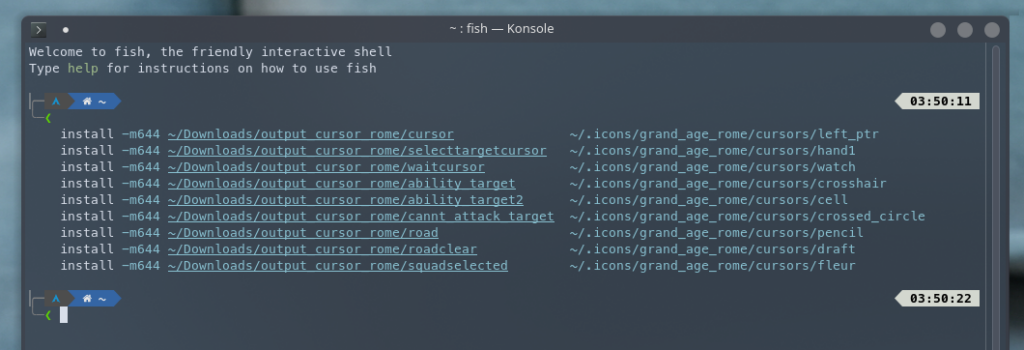
Now refresh KDE Plasma so your new theme shows up:
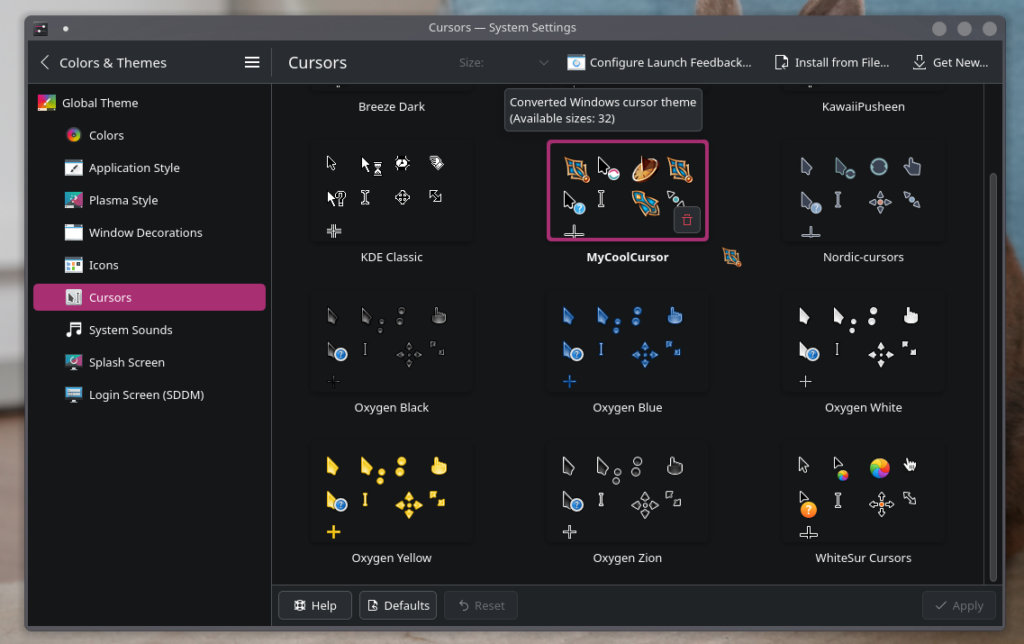
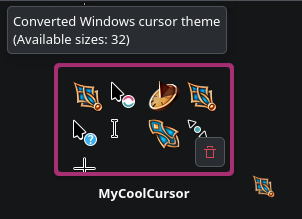
kbuildsycoca6 --noincrementalNow you should be able to select your cursor theme in the KDE Plasma Theme Settings.
Optionally, you might need some symlinks to make everything work:
    ln -s left_ptr default
    ln -s left_ptr pointer
    ln -s hand1 pointing_hand
    ln -s watch wait
    ln -s crossed_circle not-allowed
    ln -s crossed_circle no-drop
    ln -s fleur size_all
Refresh again using the kbuildsycoca6 –noincremental command above and enjoy!